
Hey there, it’s Logan Blake from AI Riches Academy! If you’re a fan of creepy, spine-chilling horror stories and want to turn them into money-making videos on YouTube, you’re in for a treat today. I’m here to walk you through how to use Videogen AI, a game-changing AI video generator, to create professional horror story videos in just 30 minutes—no filming or fancy equipment needed! Whether you’re a YouTuber, a TikToker, or just someone who loves sharing ghost stories, this AI Video Tutorials guide will show you how to craft videos that could earn you thousands, just like top creators. Ready to dive in? Let’s get started!
Why Horror Story Videos Are a Goldmine for Creators
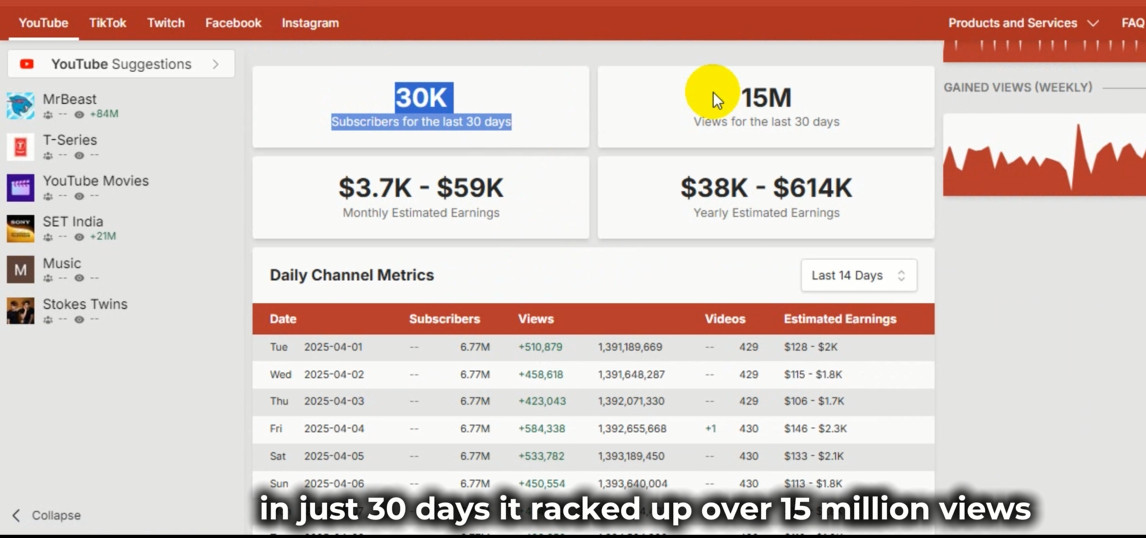
Horror story videos are a massive hit on YouTube, and the earning potential is unreal! Take Mr. Nightmare, for example—a horror storytelling channel with over 6 million subscribers. I checked their stats on SocialBlade, and in just the last 30 days, they racked up over 15 million views, earning between $3,700 and $59,000. That’s absolutely insane! Imagine what those numbers look like over a year—potentially hundreds of thousands of dollars from spooky content alone.
Now, here’s the best part: with Videogen AI, you don’t need to spend hours editing or invest in expensive gear to create similar videos. This AI video generator does all the heavy lifting for you, from generating visuals to adding voiceovers and music. All you need is an idea, and in less than 30 minutes, you’ll have a fully finished video ready to go viral. Want to see how it’s done? Let’s break it down step by step with this AI Video Tutorials guide.
🔥 Sign up for VideoGen AI and get a 30% discount code here 🔥
Step 1: Brainstorming Creepy Ideas with ChatGPT
Why Ideas Matter for Horror Videos
The foundation of any great horror story video is a killer idea, right? But coming up with fresh, creepy concepts can be tough—unless you’ve got a secret weapon like ChatGPT. This AI tool is a lifesaver for brainstorming, and I’ll show you how to use it to generate ideas that’ll hook your audience.
How to Use ChatGPT for Horror Story Ideas
Here’s how I do it:
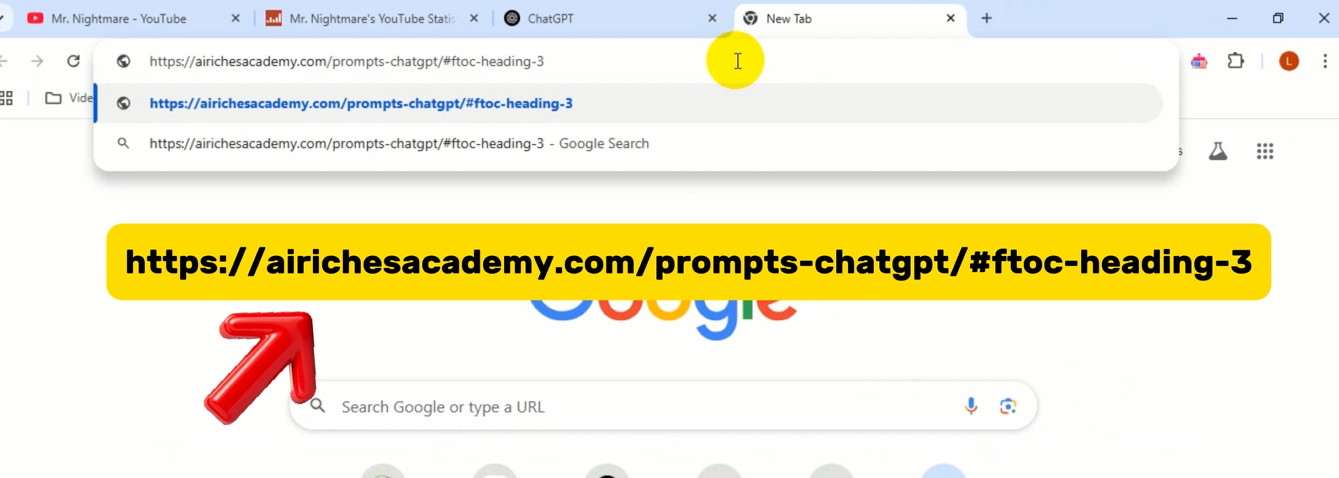
Link: https://airichesacademy.com/prompts-chatgpt/#ftoc-heading-3
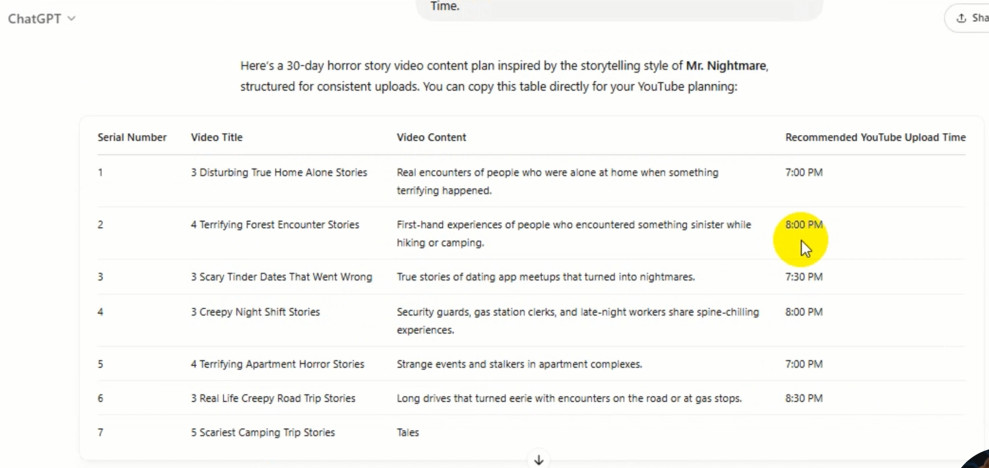
- ✅ Find the Prompt: I’ve created a custom prompt to generate 30 horror story video titles inspired by channels like Mr. Nightmare. You can grab this prompt from the resources section on my website.
- ✅ Customize It: Want to draw inspiration from a different horror storytelling channel? Just tweak the prompt to reference your favorite creator instead.
- ✅ Run the Prompt: Once you input the prompt into ChatGPT, hit enter, and watch the magic happen. In seconds, you’ll have a list of 30 spine-chilling titles like “3 Disturbing True Home Alone Stories” or “The Night I Heard Footsteps in My Attic.”
Pretty amazing, huh? I love how ChatGPT makes this process so quick and easy. Once you’ve got your list, copy it into Excel and plan out your content for the whole month. With 30 titles ready to go, you’re all set to create money-making videos with Videogen AI.
Step 2: Getting Started with Videogen AI
What Is Videogen AI?
Before we dive into the creation process, let’s talk about Videogen AI. It’s an AI video generator that lets you create professional videos without any filming or editing skills. Whether you’re making a horror story video, a YouTube Short, or a business promo, Videogen AI handles everything—from visuals to voiceovers to music. And the best part? It’s super affordable, especially with my exclusive deal.
Signing Up for Videogen AI
🔥 Sign up for VideoGen AI and get a 30% discount code here 🔥
To get started, head over to Videogen AI using my affiliate link to grab an exclusive discount. Here’s what to do:
- ✅ Click ‘Get Started’: This will take you to the sign-up page. It only takes a few seconds to create an account.
- ✅ Log In Easily: Don’t want to mess with passwords? Just click “Continue With Google” to log in with your existing email account.
- ✅ Answer or Skip Questions: Videogen AI might ask a few initial questions to personalize your experience. Feel free to answer them or skip if you’re in a hurry.
Pricing and Exclusive Discount
Videogen AI is a paid tool, but the pricing is incredibly affordable for what you get. Let’s break it down:
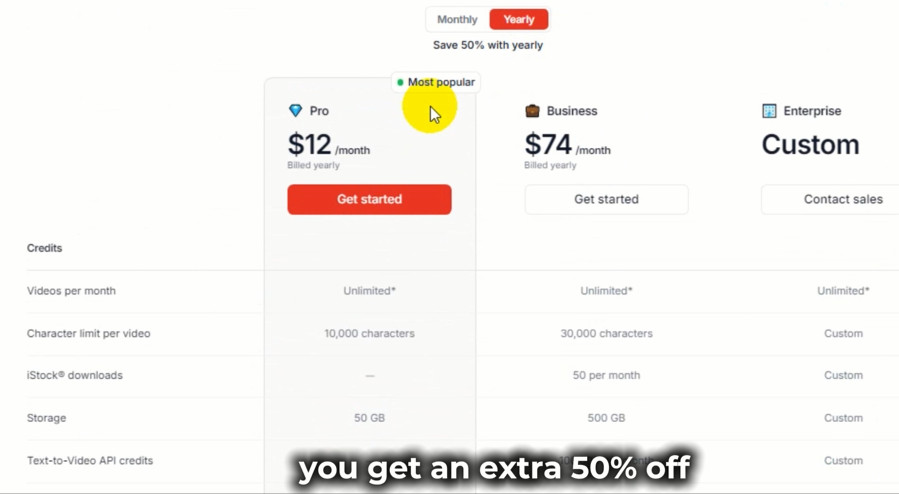
- ✅ Monthly ‘Pro’ Plan: At just $24/month, you get unlimited video creation, up to 10,000 characters per video, and 50 GB of storage.
- ✅ Yearly Plan Discount: Opt for the yearly plan, and you’ll save 50%, bringing it down to only $12/month.
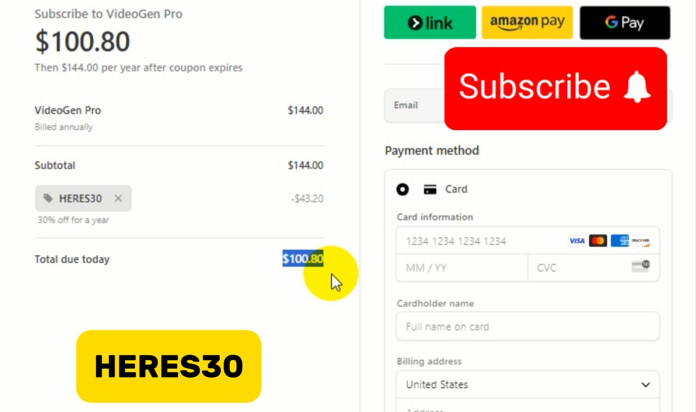
- ✅ Exclusive AI Riches Academy Deal: Sign up through my link, use the code HERES30, and get an additional 30% off! That brings the yearly plan down to just $100.8—or about $8.4/month. For a tool that can help you earn thousands like Mr. Nightmare, that’s a steal!
To apply the discount, click “Get Started,” then “Continue with Pro.” In the “Add promotion code” section, enter HERES30 and hit “Apply.” If it doesn’t work the first time, just try again. Boom—you’ll save an extra $43.2, making this one of the best deals in AI Video Tutorials!
Step 3: Creating Your Horror Story Video with Videogen AI
Select Media for Your Video
Now that you’re set up with Videogen AI, let’s start creating your video. Click on “Create a Video” to begin. The first step is “Select Media,” where Videogen AI gives you some awesome options for visuals:
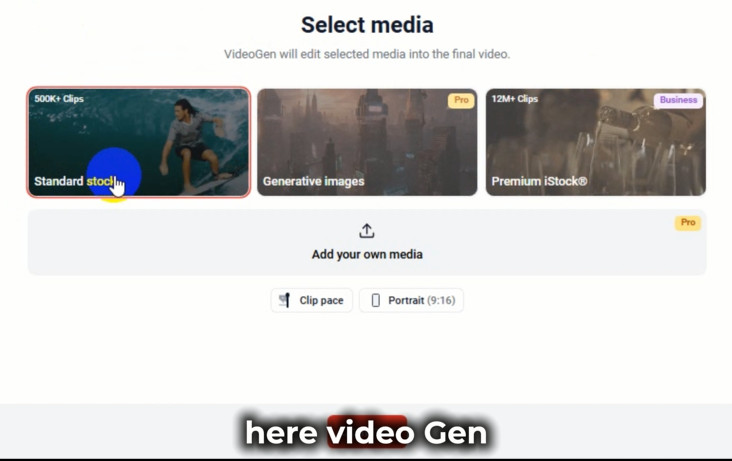
- ✅ Standard Stock: Access over 500,000 clips to choose from.
- ✅ Generative Images: Let the AI video generator create unique visuals just for your script—I recommend this for a professional touch!
- ✅ Premium iStock: Unlock 12 million high-quality clips for a premium look.
If you have your own images or videos, you can also click “Add Your Own Media” to upload them. Just drag and drop your file or select it from your computer (max file size is 1GB). This is perfect if you’ve got a creepy photo, like an old abandoned house, that you want to use.
Customize Video Settings
Next, you’ll want to tweak a few settings to make your video perfect:
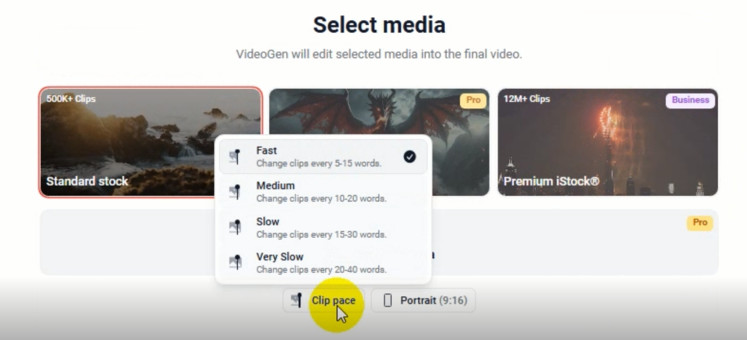
- ✅ Clip Pace: I usually go with “Medium” (10-20 words per clip) to keep the pace of the horror story just right—not too fast, not too slow.
- ✅ Aspect Ratio: Since I’m targeting YouTube Shorts and TikTok, I’ll choose “Portrait 9:16” instead of the default “Landscape.” This ensures your video fits perfectly on mobile platforms.
Once you’ve selected your media and settings, click “Next” to move on.
Step 4: Adding Your Script and Customizations
Enter Your Prompt
Now we’re at the “Enter a Prompt” step, where you’ll add the script for your video. I’ll head back to the list of titles I generated with ChatGPT and pick the first one: “3 Disturbing True Home Alone Stories.” This script is all about creepy experiences of people being home alone when strange things happen—perfect for a horror video!
Here’s how to set it up:
- ✅ Language: I’ll keep it as “US English” to match my American audience.
- ✅ Video Length: Since I want a short, snappy video for YouTube Shorts, I’ll choose “Very Short” (about 75 words). If you want a longer video, you can select “Medium” or “Long” instead.
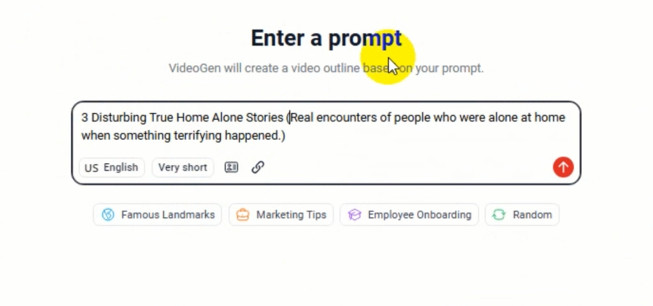
Add Branding and Website Content
Videogen AI has some cool features to make your video stand out:
- ✅ New Brand: Click “New Brand” to add your logo or personal touch to the video. This is great for building your channel’s identity.
- ✅ Add Website URLs: If you have content on a website, just enter the URL, and Videogen AI will automatically pull and edit it into your video. Super convenient for repurposing blog posts or articles!
Once you’ve entered your prompt and made your adjustments, click the red arrow button to let Videogen AI create an outline for your video. From here, the AI video generator will automatically add creepy visuals, realistic voiceovers, and eerie background music.
Step 5: Editing the Outline and Choosing a Voice
Review and Edit the Outline
After Videogen AI generates the outline, you’ll see your script broken down into smaller sections, like “Section 1,” “Section 2,” and so on. For example, my first section talks about Sarah hearing a tapping on her window at night, then spotting a stranger. If you don’t like a section, you can easily edit it:
- ✅ Click to Edit: Just click on the text and rewrite it however you want—it’s as simple as typing an email.
- ✅ Add Details: Want to make the story creepier? Add more details, like “a shadowy figure whispering her name,” to amp up the suspense.
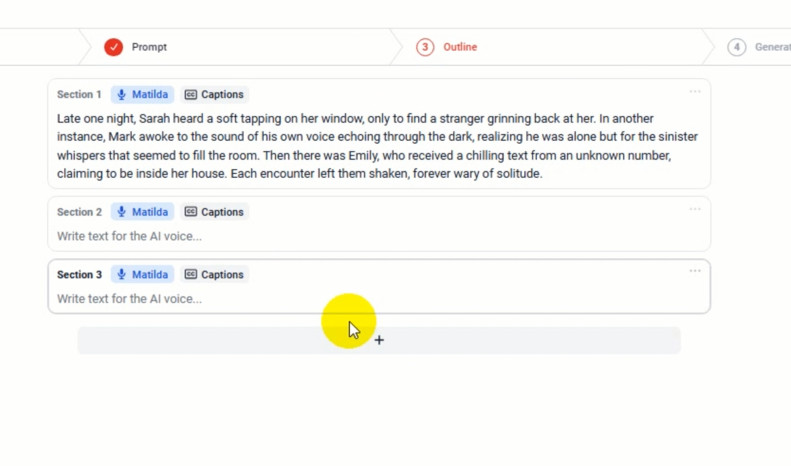
Choose an AI Voice
Next, you’ll pick the voice for your video. Videogen AI offers a ton of voice options, from deep male voices to soft female ones. I’ll go with the “Matilda” voice with a “US English” accent since I want the video to feel relatable to my American audience. Here’s how to do it:
- ✅ Select a Voice: Scroll through the options and pick one that fits your vibe. You can even try accents like British or Australian if you want something different.
- ✅ Preview the Voice: Click the little play button next to the voice to hear a preview. Matilda’s voice sounds pretty creepy—perfect for a horror story!
Add Subtitles for Accessibility
Another awesome feature of Videogen AI is the ability to add subtitles:
- ✅ Turn On Captions: I always choose “Captions” over “No Overlay” or “Text Overlay” because subtitles make it easier for viewers to follow along, especially if they’re watching without sound.
- ✅ Customize Style: You can tweak the subtitle style to match your video’s aesthetic, but the default settings work great for most videos.
Once you’ve edited the outline, picked your voice, and added subtitles, click the red “Generate Video” button at the bottom. Videogen AI will start processing and create your finished video in just a few minutes!
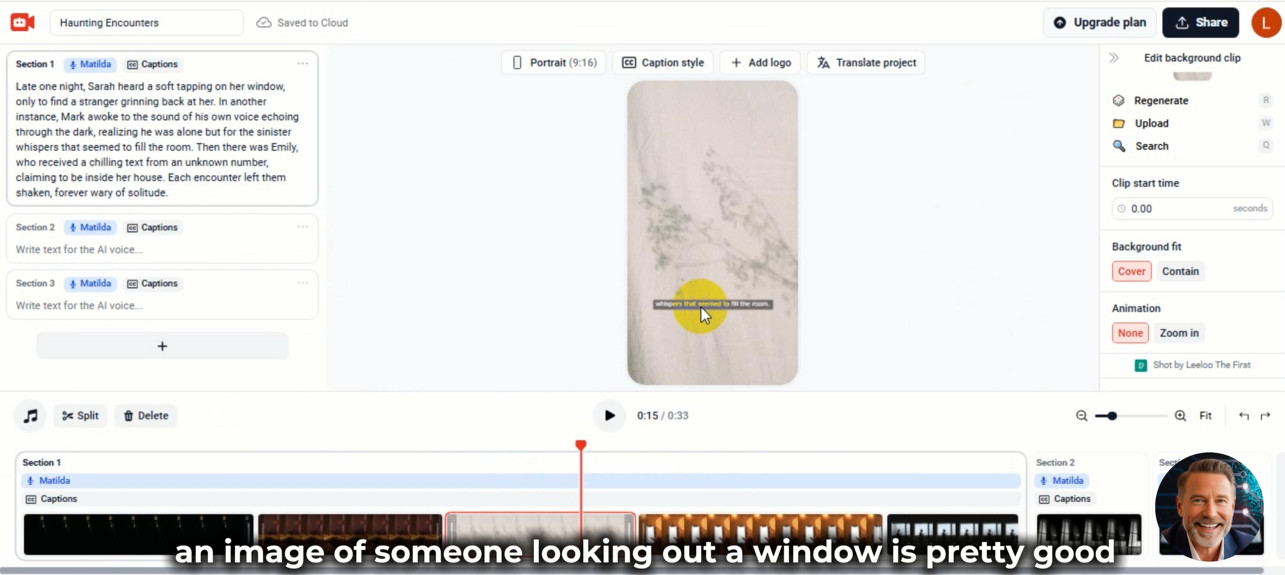
Step 6: Final Edits Before Publishing
Preview and Tweak Your Video
Once Videogen AI finishes creating the video, you’ll see the final editing interface. Here, you can preview the video and tweak each section to make sure everything’s perfect. For example, I noticed that the first section—an image of someone looking out a window—is pretty good, but I want to make it creepier.
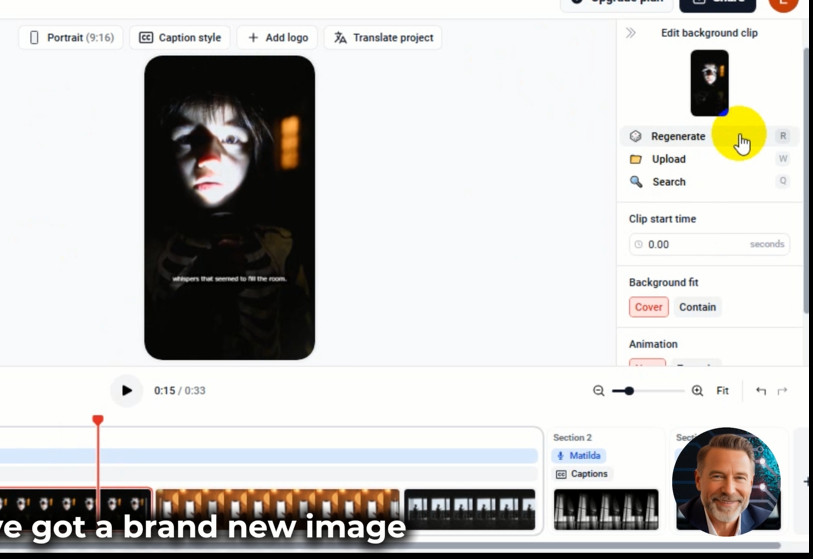
Here’s how to make changes:
- ✅ Select a Section: Click on the section you want to edit—in my case, it’s “Section 1.”
- ✅ Regenerate Visuals: Click the “Regenerate” button, and Videogen AI will automatically generate a new image that fits your script. One click, and bam—you’ve got a new image, maybe a creepy little girl in the dark!
- ✅ Upload Your Own Image: If you have a creepy image of your own, click “Upload” to add it. I’ve got a photo of an old abandoned house I took a while back, so I’ll upload that to see how it looks (max file size is 1GB).
- ✅ Search for More Clips: Want more options? Click “Search” to find images in Videogen AI’s library. I searched for “dark window ghost” and found some even creepier clips from Free Stock Videos and iStock Videos.
Customize Background Fit and Animation
You can also tweak the visuals further:
- ✅ Background Fit: Choose “Cover” to make the image fill the frame, or “Contain” to keep the original ratio without cropping. I’ll go with “Cover” for a full, impactful look.
- ✅ Animation: Add effects like “Zoom In” to create tension, but since I want a quiet, eerie vibe, I’ll set it to “None” for a more natural feel.
Step 7: Adding Background Music for That Eerie Vibe
Why Music Matters in Horror Videos
Our video already has creepy visuals, a voiceover, and subtitles, but something’s missing—background music! The right music can make or break a horror story video, setting the mood and keeping viewers on edge. Luckily, Videogen AI has a library of royalty-free music to choose from.
How to Add Music with Videogen AI
Here’s how to add the perfect track:
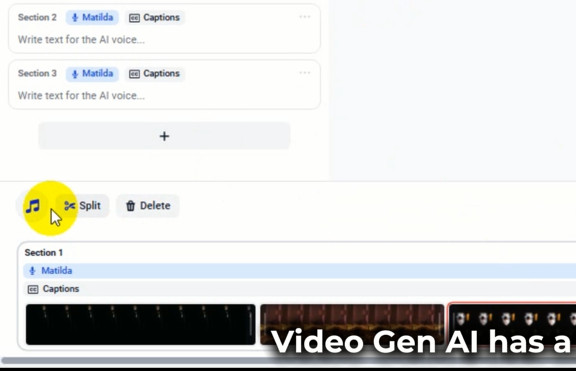
- ✅ Open the Music Section: Click the music note icon on the left to access the “Music” section.
- ✅ Choose a Category: Videogen AI offers tons of options, from “Beats” and “Happy” to “Dramatic.” Since I’m making a horror video, I’ll choose the “Dramatic” tab to find a track that builds tension.
- ✅ Pick a Track: I found one called “Dark Secrets”—it has a slow, mysterious vibe with whispering wind sounds, perfect for a spooky atmosphere. Click the play button to listen, and if you like it, select it!
- ✅ Upload Your Own Audio: If you have your own creepy music, click “Upload Audio” to add it. Just drag and drop the file, and Videogen AI will apply it to your video.
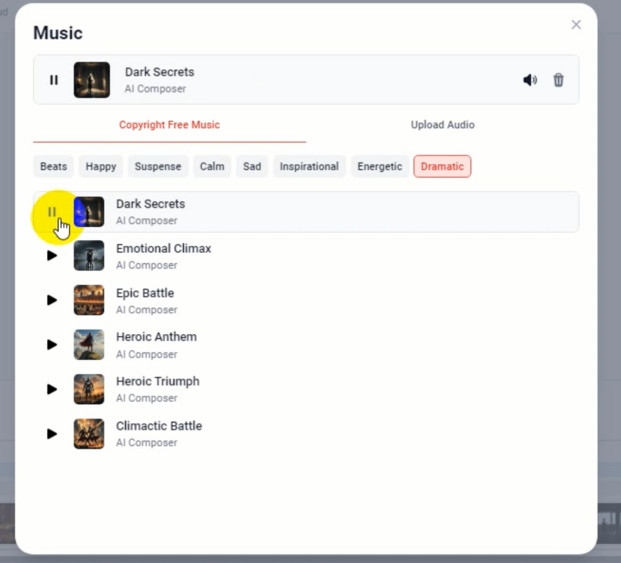
Once you’ve selected your background music, you’ll see it applied to the video right away. The “Dark Secrets” track really takes the horror vibe to the next level!
Step 8: Exporting Your Video and Final Thoughts
Export Your Video in High Quality
With everything in place—visuals, voiceover, subtitles, and music—it’s time to export your video. Videogen AI makes this super easy:
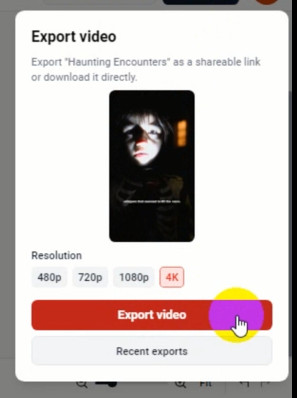
- ✅ Click ‘Share’: This takes you to the export options.
- ✅ Choose Resolution: Videogen AI supports exporting in the highest resolution, up to 4K, so your video looks crisp and professional.
- ✅ Export Video: Click “Export Video,” and in a few minutes, your video will be ready to download and upload to YouTube or TikTok.
My Thoughts on Videogen AI
So, what do I think about Videogen AI? Honestly, it’s a game-changer for creators. Making a horror story video used to take a whole week back in the day—filming, editing, adding music, the works. But with Videogen AI, you can do it all in less than 30 minutes with just a few clicks. You don’t need to come up with ideas, images, or a script—Videogen AI handles it all. It’s the ultimate tool for anyone looking to create viral content in the AI Video Tutorials space.
Bonus: More AI Tools at AI Riches Academy
👉 Bonus: The Best AI of 2025: https://airichesacademy.com/the-best-ai-of-year/
If you’re loving how easy it is to create videos with Videogen AI, you’ve gotta check out my website, The Best AI of 2025. I’ve rounded up all the latest and greatest AI tools for 2025—everything from video creators like Videogen AI to avatar makers, you name it! Plus, I’ve got a huge list of discount codes for all the top software out there, and the best part? It’s updated in real-time, so you’ll always get the hottest deals. Go check it out and let me know what you think!
Conclusion: Start Creating with Videogen AI Today!
So, there you have it—a complete guide to creating a horror story video with Videogen AI in just 30 minutes. From brainstorming ideas with ChatGPT to adding creepy visuals, voiceovers, and music with Videogen AI, this AI video generator makes the process a breeze. And here’s a cool tip: you can do all of this right on your phone if you’re too busy to use a computer. How awesome is that?
🔥 Sign up for VideoGen AI and get a 30% discount code here 🔥
Ready to start creating your own viral horror videos? Head over to Videogen AI and use the code HERES30 to save 30% on your plan. I’d love to hear about your results—share your videos in the comments below, and let’s chat! If you found this AI Video Tutorials guide helpful, don’t forget to subscribe to AI Riches Academy for more AI tips and tricks. This is Logan Blake, and I’ll see you in the next post!
👉 Check out the best AI programs available today: The Best AI of the Year
📺 Our YouTube Channel: https://www.youtube.com/@airichesacademy
👍 Our Facebook Channel: https://www.facebook.com/airichesacademy/
👍 Our Group Facebook Channel: https://www.facebook.com/groups/airichesacademy/
🐦 Our Twitter Channel (X): https://x.com/airichesacademy/
✈️ Our Telegram Channel: https://t.me/airiches/
📌 Our Pinterest Channel: https://www.pinterest.com/airichesacademy/
💼 Our LinkedIn Channel: https://www.linkedin.com/in/airichesacademy/

Loved the guide! Big thanks, Logan!
Love your awesome comment!
Thanks a ton, Logan, for the AI video generator guide!
Thanks a ton for the love!
Thanks a bunch for the insights, Logan!
Grateful for your support